Online Store Security Basics: HTTPS, Updates, and Backups : For Beginners de
Security basics that make a small store feel more solid
A lot of founders think online store security starts with complicated tools, expensive audits, or dashboards full of alerts. For most small stores, that is not the first problem to solve.
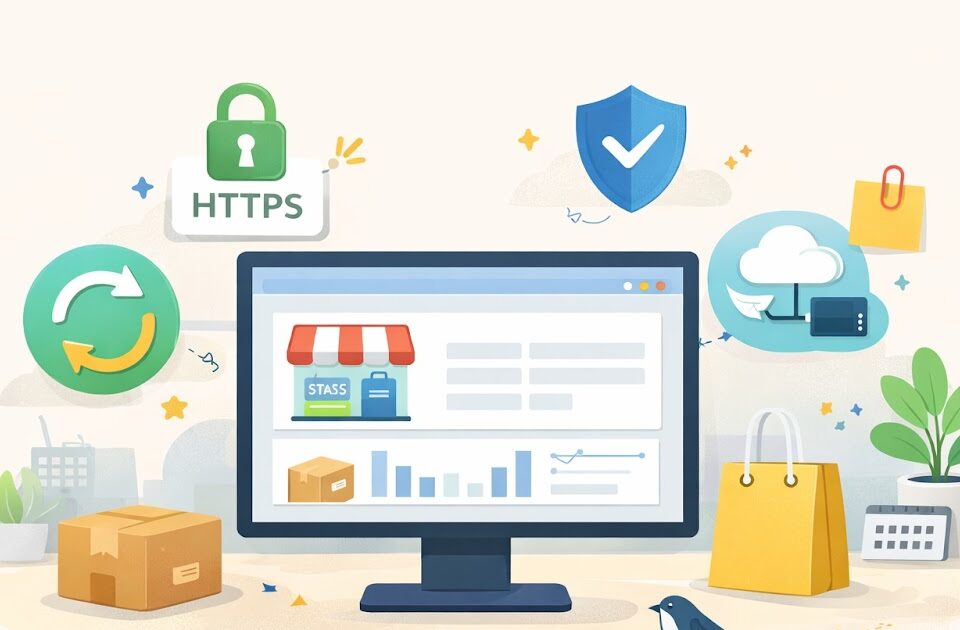
The first layer is simpler. You want a store that loads over HTTPS, stays updated, and can recover fast if something breaks. Those three basics will not make your business invincible, but they do cover a lot of preventable mess.
They also help with trust. Shoppers notice when a site feels off, even if they cannot explain why. A browser warning, a broken plugin, or a checkout problem can make people leave fast. Clean basics help your store feel calm, functional, and “tranqui,” which matters when someone is about to enter payment details.
This is the practical version. No panic, no hype, just the first best actions that help a small ecommerce business stay in better shape.
Why the basics matter more than fancy tools
Security is often framed like an advanced topic. In reality, small stores usually run into basic failures first: expired certificates, outdated plugins, broken themes, missing backups, or changes nobody documented.
That is why the simple stuff deserves attention. Google still treats secure connections as part of page experience, and it has also long used HTTPS as a ranking signal. HTTPS protects the connection between the browser and the site, which matters for customer trust and safer data transfer. :contentReference[oaicite:0]{index=0}
The same pattern shows up with updates and backups. WordPress documentation says the most important thing for WordPress security is keeping WordPress core, plugins, and themes up to date, and it recommends choosing themes and plugins that are actively maintained. WordPress also stresses having backups and a recovery plan, while OWASP recommends regular backups protected with proper permissions and ideally encryption. :contentReference[oaicite:1]{index=1}
For a small store, that means this: before buying another tool, make sure the basics are real and working.
Start with HTTPS so your store feels safe and works cleanly
HTTPS is the secure version of HTTP. It encrypts the connection between a shopper’s browser and your website, which is especially important anywhere users log in, enter contact details, or complete checkout. :contentReference[oaicite:2]{index=2}
Most store owners do not need to understand the deep technical side. They just need to confirm a few basics:
- your store loads with
https:// - the browser does not show a security warning
- key pages like product, cart, account, and checkout all stay on HTTPS
- old HTTP versions redirect to HTTPS
One common mistake is thinking “we installed SSL once, so we’re done.” Not always. You can still have mixed content problems, where some page elements load over plain HTTP instead of HTTPS. That can create warnings or make the site feel broken. :contentReference[oaicite:3]{index=3}
A natural example: imagine a small apparel shop that moved to HTTPS, but some old theme images still load over HTTP. The homepage might look fine, but a customer could still see warnings or broken visuals. That is the kind of detail that quietly hurts trust.
First best actions for HTTPS
- Open your homepage, a product page, cart, and checkout in a browser.
- Confirm the site uses
https://everywhere. - Test the old
http://version and make sure it redirects. - Check for browser warnings on desktop and mobile.
- Fix mixed content if images, scripts, or theme assets still call insecure URLs.
Keep your store updated before small issues become bigger ones
Updates are boring until they save you.
If you run your store on WordPress, Shopify apps, WooCommerce extensions, or another ecommerce platform with add-ons, your risk often grows through old code that nobody touched for months. WordPress’s official guidance is direct here: keep WordPress itself, plus plugins and themes, up to date, and prefer extensions that are actively receiving updates. :contentReference[oaicite:4]{index=4}
That does not mean updating blindly on a busy sales day. It means having a lightweight routine.
A practical rhythm for a small store might look like this:
- check for updates once a week
- review what each update affects
- apply low-risk updates during a quieter window
- test product pages, cart, checkout, and forms after changes
- remove plugins or apps you no longer use
That last one matters more than many people think. An unused plugin is not harmless just because it is inactive in your mind. If it is installed, it can still become part of your maintenance problem.
Update routine that works for small teams
- Keep a short plugin list. Fewer moving parts usually means fewer surprises.
- Use trusted sources. WordPress specifically recommends getting themes and plugins from trusted sources such as the WordPress.org repository or well-known companies. :contentReference[oaicite:5]{index=5}
- Avoid stacking changes. Do not update ten things right before a launch or promotion.
- Test the revenue path first. Homepage is nice, but cart and checkout matter more.
- Write down what changed. Even a simple note like “updated payment plugin Tuesday afternoon” helps later.
Backups are your reset button when something goes wrong
A backup is what lets you recover instead of panic.
Even well-run stores can break after an update, a hosting issue, a bad app conflict, or a human mistake. WordPress’s backup guidance recommends backing up the database first and then the site files, while its security docs emphasize having a backup and recovery plan so you can get back online faster. OWASP adds that backups should be protected with proper permissions and ideally encryption. :contentReference[oaicite:6]{index=6}
For a small store, the real question is not “Do I have backups somewhere?” It is “Could I restore the store without chaos?”
That means knowing:
- what is backed up
- how often it runs
- where the backups are stored
- who can access them
- how to restore one if needed
A simple example: a handmade soap store updates its checkout extension on Friday afternoon, and the cart stops working. Without a recent backup, the owner is stuck troubleshooting during the weekend. With a current backup and a basic restore process, the problem is annoying, but manageable.
What a practical backup setup includes
- Regular schedule: daily for active stores is common, especially if orders come in every day.
- Files and database: both matter.
- Off-site copy: not only on the same server.
- Limited access: not every team member needs backup access.
- Restore test: at least occasionally, make sure recovery actually works.
Quick checklist for a more “tranqui” setup
Use this as a simple monthly review.
Quick Checklist
- [ ] My store loads on HTTPS across homepage, product pages, cart, and checkout.
- [ ] HTTP traffic redirects to HTTPS.
- [ ] I have checked for mixed content or browser security warnings.
- [ ] My core platform, plugins, themes, or apps are up to date.
- [ ] I removed extensions I no longer use.
- [ ] I know which tools came from trusted sources.
- [ ] Backups run on a real schedule.
- [ ] Backups include both files and database data.
- [ ] At least one backup copy is stored off-site.
- [ ] I know the first steps to restore the store if something breaks.
What to do next
Do not try to “solve security” in one afternoon. Just tighten the basics this week.
Start with this order:
- confirm HTTPS is working everywhere
- review and apply needed updates
- verify your backup schedule and restore plan
That small sequence does a lot for a growing store. It protects trust, reduces avoidable downtime, and gives you a cleaner base for everything else. For most founders and operators, that is the right kind of progress, practical, steady, and a lot more “tranqui” than guessing your way through a problem later.
Common questions
Q1. Do I still need HTTPS if my platform already handles payments?
A1. Yes. Even if payments are handled by a trusted platform, HTTPS still matters for the connection between customers and your store pages, including login, account, and checkout flow.
Q2. How often should I update my store?
A2. For many small stores, a weekly check is a solid starting point. The key is consistency and testing after changes, not random bulk updates.
Q3. Are host backups enough on their own?
A3. They can help, but it is safer to know exactly what is being backed up, how often, and how you would restore it. A backup you cannot restore is not much of a plan.
Q4. What should I test after an update?
A4. Start with the pages that affect sales and support: homepage, product page, cart, checkout, contact form, and account login.
Suggested External Links
- Google Search guidance on secure connections and page experience :contentReference[oaicite:7]{index=7}
- WordPress security and backup documentation :contentReference[oaicite:8]{index=8}
References
- Google Search and HTTPS documentation :contentReference[oaicite:9]{index=9}
- WordPress and OWASP security guidance :contentReference[oaicite:10]{index=10}